
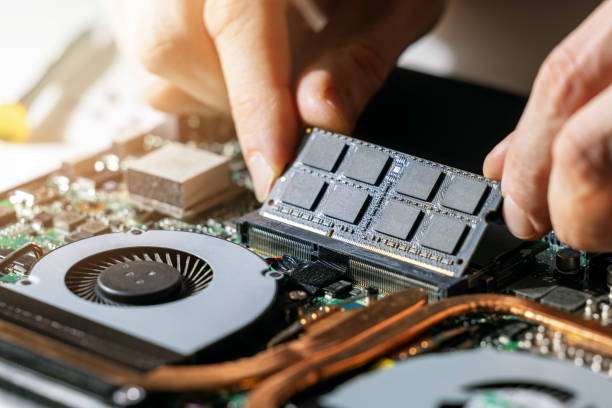
You’ve invested in a Mac for its sleek design and reliable performance, but have you considered how regular maintenance can impact its lifespan?
Keeping your Mac in top shape isn’t just about aesthetics; it’s about ensuring optimal functionality and avoiding unexpected hardware issues. You can maintain a smooth operating machine by routinely updating your operating system and managing disk space. But what about those hidden factors that could be silently degrading your device?
Understanding these can be the key to unlocking a longer, more efficient life for your Mac. This reinforces the need for regular computer maintenance for long-term performance, even on Apple devices.
Our MacBook maintenance and repair service in waldo addresses these issues before they lead to costly failures. Curious about what else you might be missing?
Enhancing Performance
A few strategic steps can make a world of difference when it comes to enhancing your Mac’s performance.
Keep Software Up-to-Date
Regularly updating your operating system and applications is crucial for optimal performance.
These updates often include enhancements that improve functionality and security, ensuring your Mac runs smoothly.
To check for updates, go to System Settings > Software Update and install any available updates.
- Benefits of Updates: Improved performance, enhanced features, and increased security.
- Automatic Updates: Enable automatic updates for hassle-free maintenance.
Manage Startup Programs
Managing your startup programs can significantly improve your Mac’s boot time.
Over time, unnecessary applications may accumulate, slowing down the startup process.
By navigating to System Settings > Users & Groups > Login Items, you can remove any programs that you don’t need to launch automatically.
- Review Login Items: Regularly check and update your startup list.
- Remove Unnecessary Apps: Eliminate programs you rarely use to speed up startup.
Manage Your Storage
Proper storage management is essential for maintaining performance levels.
A nearly full hard drive can lead to slowdowns, so monitoring your available disk space is important.
Use the built-in Storage Management tool to identify large or redundant files and delete them to free up space.
- Identify Large Files: Use the Storage Management tool to find files that occupy significant space.
- Organize Storage: Consider moving less frequently used files to external storage.
Declutter Your Desktop
A cluttered desktop can negatively impact your Mac’s performance by consuming additional system resources.
Organizing files into folders or moving them to external storage helps reduce clutter and can enhance your workflow.
By keeping your desktop tidy, you’ll improve performance and create a more enjoyable user experience.
- Use Folders: Create folders to group similar files together.
- Regular Maintenance: Set a routine to clean up your desktop and keep it organized.
Following these steps can help keep your Mac running smoothly and efficiently.
Preventing Hardware Issues for a Long-Lasting Mac
To ensure your Mac’s longevity, it’s essential to take preventive measures to safeguard its hardware.
Here are some tips to keep your device in optimal condition:
Regular Cleaning
Maintaining a clean Mac prevents hardware issues and ensures smooth performance.
- Dust Removal: Regularly clean the exterior of your Mac, focusing on the vents and keyboard. Use compressed air to remove dust from hard-to-reach areas, which can help prevent overheating and maintain airflow.
- Internal Cleaning: Consider professional cleaning or consult a technician to thoroughly clean the internal components, as accumulated dust can affect performance.
Battery Care
Taking care of your battery is vital for maximizing its lifespan and performance.
- Optimal Charging: Avoid fully or completely draining your battery regularly, as this can shorten lifespan. Instead, aim to keep your battery charged between 20% and 80%.
- Temperature Control: To prevent battery degradation, keep your Mac away from extreme hot and cold temperatures. Ideal operating temperatures are typically between 10° and 35° C (50° and 95° F).
- Battery Health Management: Use macOS’ built-in tools to monitor and optimize battery health, allowing you to address any potential issues early on.
Hard Drive Maintenance
Regular hard drive maintenance is essential for protecting your data and ensuring optimal performance.
- Regular Backups: To protect against data loss, create regular backups of your important data using Time Machine or another backup solution. This is crucial in case of hardware failure or accidental deletion.
- Disk Utility: Utilize the Disk Utility application to check for errors and optimize your hard drive regularly, helping to maintain its performance and reliability.
- Consider an SSD: Upgrading to a Solid-State Drive (SSD) can significantly improve performance and longevity compared to traditional hard drives, enhancing your Mac’s overall speed and responsiveness.
By following these tips and addressing potential issues early on, you can extend the life of your Mac and ensure it continues to perform at its best.
Regular maintenance prevents hardware problems and enhances your overall computing experience.
Boosting Your Mac’s Security and Privacy
In today’s digital age, protecting your Mac’s security and privacy is crucial.
Here are some essential tips to keep your device safe:
Software Updates:
- Regular Updates: Keep your macOS and apps up-to-date to address security vulnerabilities and improve performance.
Strong Passwords and Two-Factor Authentication:
- Strong Passwords: Create strong, unique passwords for your Apple ID and other online accounts.
- Two-Factor Authentication: Enable two-factor authentication to add an extra layer of security.
Privacy Settings:
- Review App Permissions: Regularly review the permissions granted to apps and adjust them as needed.
- Use Privacy Features: Utilize built-in privacy features like Intelligent Tracking Prevention in Safari to protect your online activity.
Internet Security:
- VPN: Consider using a VPN to encrypt your internet traffic and protect your privacy.
- Firewall: Keep your Mac’s firewall enabled to prevent unauthorized access.
- Antivirus Software: While macOS is generally secure, using a reliable antivirus software can provide additional protection.
By following these tips, you can significantly enhance your Mac’s security and privacy, ensuring a safer and more secure computing experience.