
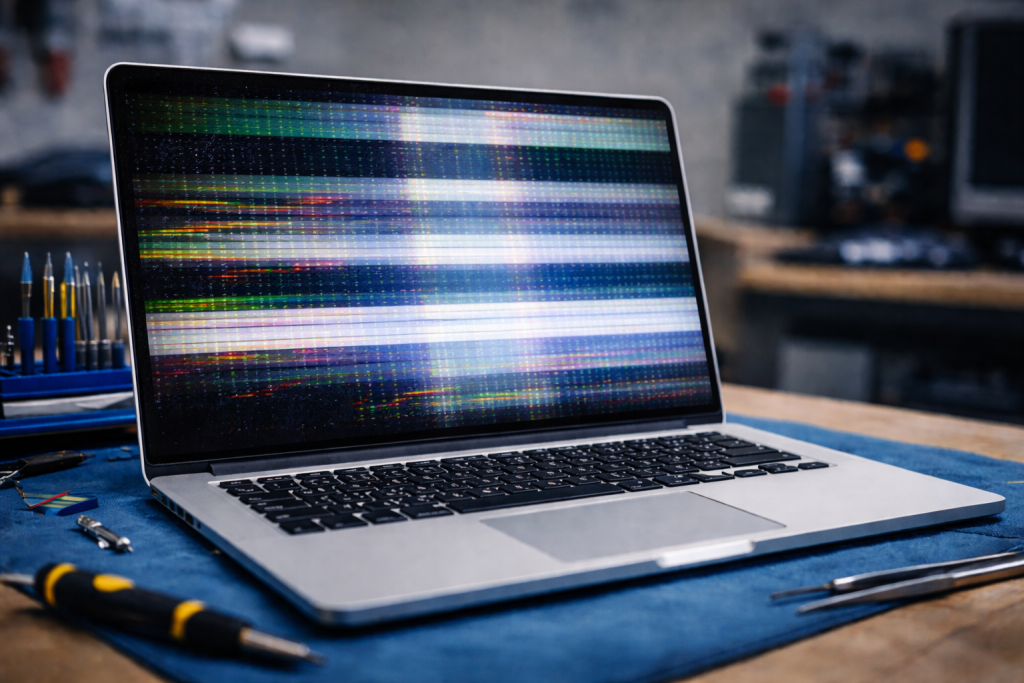
A flickering laptop screen is one of the most common repair questions we get at our Kansas City shop. The good news: most of the time it’s a software fix you can do yourself in under 10 minutes. When it’s not, it’s usually a loose cable or a failing screen — both of which we fix same day.
Here’s how to figure out what’s going on and fix it step by step.
What Is the Main Cause of Screen Flickering?
Three things cause the vast majority of flickering screens:
- A corrupted or outdated graphics driver — by far the most common cause
- An incompatible app — certain antivirus programs, browsers, or recently installed software can conflict with your display
- A loose or failing hardware connection — the cable connecting your screen to the motherboard (called the eDP cable) can wear out, especially on laptops that get opened and closed thousands of times
A good way to tell which one you’re dealing with: press Ctrl + Shift + Esc to open Task Manager. If Task Manager itself is flickering, it’s a driver problem. If Task Manager stays stable but the rest of the screen flickers, a specific app is the culprit.
How to Fix a Flickering Laptop Screen — Step by Step
Step 1: Refresh Your Graphics Driver Instantly
Before changing any settings, try this first — it takes 3 seconds and fixes temporary glitches without restarting:
Press Windows Key + Ctrl + Shift + B at the same time. Your screen will go black for a second and you’ll hear a beep. That’s normal — it’s resetting the graphics driver on the spot.
If the flickering stops after this, you’re done.
Step 2: Update or Reinstall Your Graphics Driver
If the quick reset didn’t hold, the driver itself needs to be updated or reinstalled.
- Right-click the Start menu and open Device Manager
- Expand Display adapters and right-click your graphics card (Intel, NVIDIA, or AMD)
- Select Update driver → Search automatically
- If that doesn’t fix it, right-click again and choose Uninstall device, then restart your laptop — Windows will reinstall a clean version automatically
Step 3: Fix the Refresh Rate
A mismatched refresh rate causes stuttering and flashing, especially after a Windows update.
- Right-click your desktop → Display settings
- Scroll down and click Advanced display
- Under Refresh rate, try switching between 60Hz and the highest available option on your screen
- If you see an option like 59Hz or 50Hz selected, that’s your problem — switch it to 60Hz or higher
Step 4: Turn Off Intel Panel Self-Refresh
If you have an Intel graphics chip (common on older laptops), there’s a power-saving feature that can cause severe flickering.
- Open Intel Graphics Command Center or Intel Graphics Control Panel (search for it in your Start menu)
- Find Display Power Savings or Panel Self-Refresh
- Turn it OFF
This alone fixes the problem on a large number of older Intel laptops.
Step 5: Check for a Hardware Problem
If none of the software fixes work, tilt your screen slowly back and forth while the laptop is on. If the flickering changes, gets worse, or stops completely when you move the screen — that’s a physical hardware fault, not software.
Two things usually cause this:
- A loose eDP video cable (the ribbon cable connecting the screen to the motherboard)
- A failing LCD panel
Both are repairable. At our Kansas City shop, we diagnose screen hardware issues for free and can usually have it fixed the same day.
Is a Screen Flicker a Serious Problem?
It depends on the cause. A driver issue is not serious at all — update the driver and it’s gone. A failing LCD or loose cable is more urgent because it usually gets worse over time and can eventually leave you with no display at all. If your screen flickers when you move the lid, don’t ignore it.
Does Screen Flickering Mean a Virus?
Rarely. It can happen — some malware interferes with display drivers — but a virus is not the typical cause of screen flickering. Run a malware scan to rule it out, but start with the driver fix first.
How to Know If Your Laptop LCD Is Broken
Signs your LCD panel itself is failing:
- Flickering that gets worse over time regardless of software fixes
- Dark patches, color bleeding, or lines appearing on the screen
- Screen goes completely black when tilted past a certain angle
- Flickering only happens on the laptop screen, not on an external monitor
If plugging in an external monitor and the external display works fine with no flickering, the problem is definitely in your laptop screen or its cable — not your graphics card.
Why Is My Windows 11 Screen Suddenly Flickering?
Windows 11 updates occasionally push out driver changes that conflict with certain hardware. If your screen started flickering right after a Windows update, go to Device Manager → Display adapters, uninstall your graphics driver, restart, and let Windows reinstall it fresh. If that doesn’t work, you can roll back the Windows update under Settings → Windows Update → Update History → Uninstall updates.
How Much Does It Cost to Fix a Flickering Laptop Screen?
- Driver or software fix — free, you can do it yourself following the steps above
- eDP cable replacement — typically $80–$150 at a repair shop depending on the laptop model
- Full LCD screen replacement — typically $120–$250 depending on screen size and brand
At CSEKC in Kansas City, we diagnose for free. If it’s a driver issue we’ll walk you through it at no charge. If it needs a hardware fix, we’ll give you a straight price before touching anything.
Bring it in at 8137 Wornall Rd, Kansas City, MO or call (913) 980-7665.
→ Learn more about our laptop screen repair service
Why Is My HP Laptop Screen Flickering?
HP laptops are particularly prone to flickering because of their Intel integrated graphics and the Panel Self-Refresh feature mentioned in Step 4 above. Try disabling Panel Self-Refresh first — it solves the problem on HP laptops more often than any other fix. If that doesn’t work, update the Intel graphics driver directly from Intel’s website rather than through Windows Update, as HP’s bundled drivers are often outdated.
What Are the Signs of a Failing Computer Monitor or Laptop Screen?
- Flickering that gets progressively worse
- Dead pixels (small permanent black or colored dots)
- Screen dims or goes completely dark randomly
- Colors look washed out or have a yellowish tint
- Horizontal or vertical lines across the display
- Screen takes longer to turn on than usual
If you’re seeing two or more of these, the screen is failing and replacement is usually the more cost-effective fix compared to living with the problem.
Ready to get it fixed? Drop it off at our shop or call us first and we’ll tell you over the phone whether it sounds like a software fix or a hardware job.
📍 8137 Wornall Rd, Kansas City, MO 📞 (913) 980-7665 → Book a repair or get a free diagnosis