
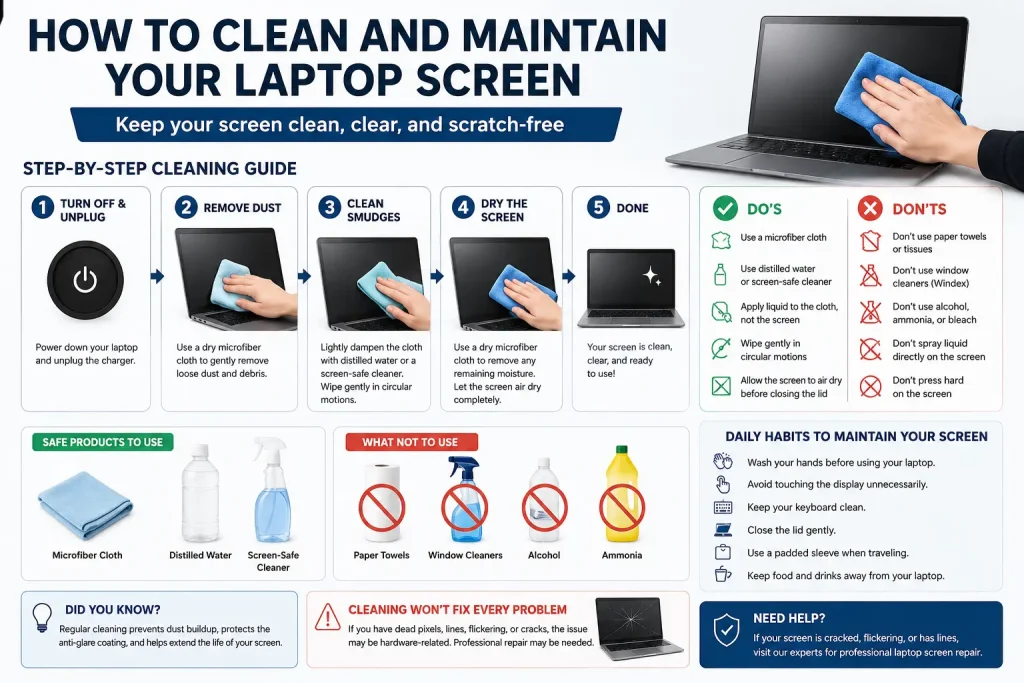
A clean laptop screen not only looks better but also improves visibility and helps protect your display from unnecessary wear. The safest way to clean a laptop screen is to turn off the laptop, unplug it, and gently wipe the display with a clean microfiber cloth. For fingerprints or stubborn smudges, lightly dampen the cloth with distilled water or a screen-safe cleaner—never spray liquid directly onto the screen. Proper cleaning helps preserve the anti-glare coating, prevents scratches, and extends the life of your laptop display.
Whether you use your laptop for work, school, gaming, or everyday browsing, following the proper cleaning methods can keep your screen looking like new while reducing the risk of accidental damage.
Tools You’ll Need
Before cleaning your laptop screen, gather the following:
- Clean microfiber cloth
- Distilled water
- Screen-safe cleaning solution (optional)
- Small spray bottle (optional)
- Dry microfiber cloth for finishing
Avoid using paper towels, tissues, or rough fabrics since they can scratch delicate screen coatings.
Step-by-Step: How to Clean a Laptop Screen
Step 1: Turn Off and Unplug Your Laptop
Power down the laptop completely and disconnect the charger. Cleaning a powered-on screen makes fingerprints and smudges harder to see and increases the risk of electrical damage if moisture reaches internal components.
Step 2: Remove Dust First
Using a dry microfiber cloth, gently wipe the screen in circular motions to remove loose dust and debris.
Avoid pressing hard on the display, as excessive pressure can damage LCD or LED panels.
Step 3: Remove Fingerprints and Smudges
If fingerprints remain, lightly dampen your microfiber cloth with distilled water or a screen-safe cleaner.
Important:
- Never spray liquid directly onto the screen.
- Only dampen the cloth.
- The cloth should be slightly moist—not dripping wet.
Gently wipe the display until fingerprints disappear.
Step 4: Dry the Screen
Use a second clean microfiber cloth to remove any remaining moisture.
Allow the screen to air dry completely before closing the lid or turning the laptop back on.
What Cleaning Products Are Safe?
The safest cleaning options include:
- Distilled water
- Screen-safe LCD cleaners
- Manufacturer-approved cleaning solutions
Always check your laptop manufacturer’s recommendations before using specialty cleaners.
What Should You Never Use?
Never clean your laptop screen with:
- Paper towels
- Facial tissues
- Window cleaners (such as Windex)
- Bleach
- Ammonia-based cleaners
- Acetone
- Abrasive cloths
- Excessive amounts of water
These products can damage anti-glare coatings, leave scratches, or allow moisture to enter the display assembly.
How Often Should You Clean Your Laptop Screen?
Most laptop screens should be cleaned every one to two weeks, depending on how frequently the device is used.
Daily users, students, and office workers may benefit from weekly cleaning, while occasional users can clean their screens whenever dust, fingerprints, or smudges become noticeable.
Daily Habits That Keep Your Laptop Screen Clean
Simple habits can reduce the need for frequent cleaning:
- Wash your hands before using your laptop.
- Avoid touching the display unnecessarily.
- Keep your keyboard clean.
- Close the lid gently.
- Store your laptop in a padded sleeve when traveling.
- Keep food and drinks away from your computer.
These habits also help prevent scratches and pressure marks on the display.
Can You Use Alcohol to Clean a Laptop Screen?
It depends on the laptop manufacturer.
Most manufacturers recommend distilled water or a screen-safe cleaner. While some Apple devices may tolerate highly diluted isopropyl alcohol, many anti-glare coatings can be damaged by high concentrations of alcohol.
Always check your manufacturer’s cleaning recommendations before using alcohol-based products.
Common Cleaning Mistakes to Avoid
Many damaged laptop screens result from improper cleaning rather than accidents.
Avoid these common mistakes:
- Spraying cleaner directly on the display
- Using too much liquid
- Pressing firmly while wiping
- Using household glass cleaners
- Cleaning while the laptop is still powered on
- Closing the lid before the screen is completely dry
Following proper cleaning techniques can help preserve your display for years.
Cleaning Won’t Fix Every Screen Problem
Sometimes what appears to be dirt is actually hardware damage.
Cleaning will not repair:
- Dead pixels
- Black spots
- White spots
- Vertical lines
- Horizontal lines
- Flickering displays
- Pressure marks
- Cracked LCD panels
- Delaminated screens
If these problems remain after cleaning, the issue is likely inside the display rather than on the surface.
In these cases, professional Laptop Screen Repair may be necessary to restore your display properly.
When Should You Seek Professional Repair?
If your laptop screen has:
- Cracks
- Flickering
- Permanent lines
- Black spots
- Display bleeding
- No image
- Loose hinges affecting the display
Cleaning won’t solve the problem.
A professional technician can determine whether the LCD panel, display cable, hinges, or graphics hardware is causing the issue.
If you’re looking for reliable PC Repair in Kansas City, Computer Solutions & Exchange (CSEKC) provides professional laptop diagnostics, screen replacement, and computer repair services for all major brands, including Dell, HP, Lenovo, Apple, ASUS, Acer, MSI, and more.
Frequently Asked Questions
Can I use Windex on my laptop screen?
No. Window cleaners often contain ammonia, which can damage anti-glare coatings and permanently affect your display.
Can I use paper towels to clean my laptop screen?
No. Paper towels can leave scratches and lint. Always use a clean microfiber cloth.
Is distilled water safe for laptop screens?
Yes. Distilled water is one of the safest cleaning solutions when applied to a microfiber cloth rather than sprayed directly onto the screen.
Why does my laptop screen still look dirty after cleaning?
If stains, lines, bright spots, or discoloration remain after cleaning, the issue is likely inside the LCD panel rather than on the surface.
Can cleaning fix screen flickering?
No. Screen flickering is usually caused by display drivers, loose display cables, hardware failure, or a damaged LCD panel rather than dirt on the screen.
Cleaning an External Monitor Screen
The same method works for desktop monitors and all-in-one PC screens: turn the screen off, dust it with a dry microfiber cloth, then wipe gently with a cloth lightly dampened with distilled water. Never spray liquid directly onto the screen, because it can run down into the bezel and damage the electronics, and avoid paper towels, glass cleaner and alcohol on matte anti-glare screens.