
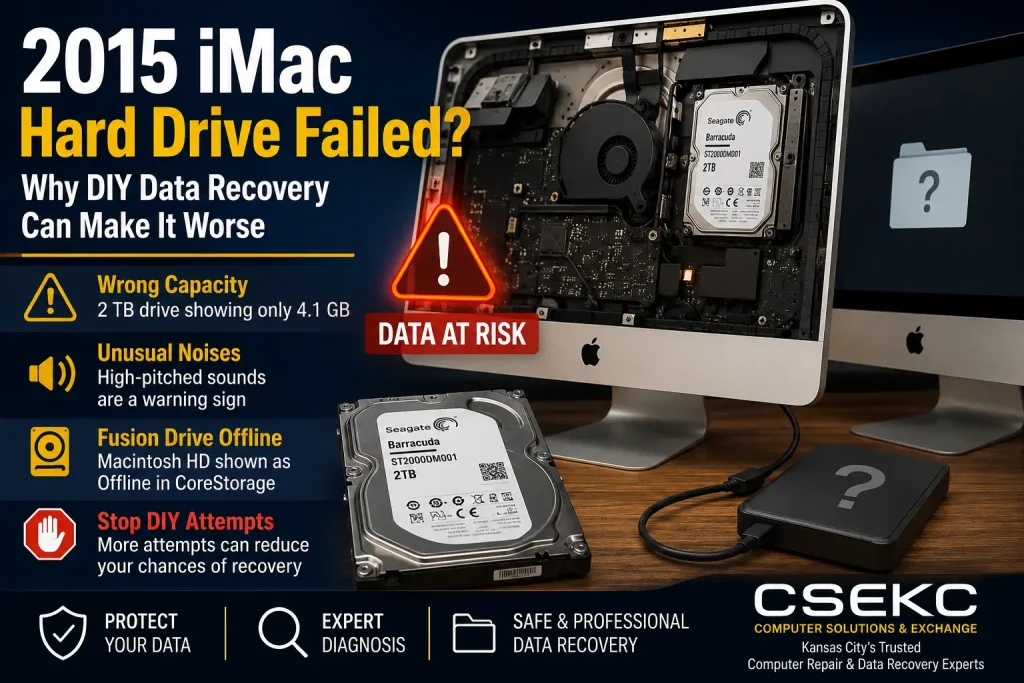
2015 iMac Hard Drive Failed? Why You Should Stop Trying DIY Data Recovery
When an iMac suddenly stops booting, many people immediately start searching online for ways to repair the hard drive, reinstall macOS, run Disk Utility, or copy their files to another drive.
Sometimes those methods are appropriate.
But when the internal hard drive is physically failing, repeated attempts to repair or access it can make data recovery more difficult.
We recently worked with a 2015 27-inch iMac that demonstrated exactly why it is important to determine whether you are dealing with a software problem or an actual hard-drive failure before attempting repairs.
The iMac would no longer boot normally. The owner needed the data from the machine, so instead of reinstalling macOS or erasing the drive, we investigated the storage system first.
What we found was a failed 2 TB Seagate hard drive that was part of Apple’s Fusion Drive system.
The drive still identified itself to the Mac, but instead of reporting approximately 2 TB of storage, it reported only about 4.1 GB.
That is a major warning sign.
If you have important pictures, documents, business records, financial information, or other irreplaceable files on an iMac that is beginning to fail, this is the point where continuing to experiment can become risky.
If your iMac will not boot, the hard drive is making unusual noises, or the Fusion Drive has gone offline, our Mac and iMac repair in Kansas City service can diagnose the storage problem before additional recovery attempts put your data at greater risk.
What Is a Fusion Drive?
Many 27-inch iMac models from this era were configured with what Apple called a Fusion Drive.
A Fusion Drive combines two physical storage devices:
- A fast PCIe solid-state drive, or SSD
- A larger traditional mechanical hard drive
macOS combines the two devices and presents them to the user as one Macintosh HD.
The idea was to provide some of the speed of an SSD while still providing the larger storage capacity of a mechanical hard drive.
For example, the iMac we examined contained:
- Approximately 128 GB Apple PCIe SSD
- 2 TB Seagate ST2000DM001 mechanical hard drive
To the original user, these weren’t normally visible as two separate storage devices. They operated together as one logical Mac drive.
That becomes very important during data recovery.
If one side of a Fusion Drive fails, you generally cannot simply ignore the failed drive and expect all of the customer’s files to exist on the surviving SSD.
Parts of the filesystem and user data can exist across both physical devices.
The iMac Still Detected the Hard Drive — But Something Was Very Wrong
One of the most confusing situations for customers is when a failed hard drive is still visible.
People often assume:
“If the computer can see the drive, the drive must still be OK.”
Unfortunately, that isn’t always true.
In this particular iMac, the SATA controller could communicate with the Seagate drive.
The system could identify:
Model: ST2000DM001
Connection: SATA
Rotational speed: 7200 RPM
Original capacity: 2 TB
However, the drive was reporting only approximately:
4.14 GB
A 2 TB drive suddenly identifying as approximately 4 GB is not a normal missing-file problem.
It suggests that something much more serious may be happening at the hard-drive level.
The computer may still recognize the manufacturer’s model number and other information while being unable to access the drive’s normal storage area correctly.
At that point, reinstalling macOS is not the solution.
Unusual Sounds Are Another Warning Sign
The iMac in this case also produced an unusual high-pitched sound when the machine was powered on and the storage system was being accessed.
Any new or unusual mechanical sound from a traditional hard drive should be taken seriously.
Depending on the failure, a mechanical drive may:
- Click repeatedly
- Spin up and then spin down
- Make grinding noises
- Produce unusual high-pitched sounds
- Take an extremely long time to respond
- Disappear and reappear
- Freeze the computer when files are accessed
The exact noise alone cannot tell us which internal component has failed.
However, when unusual sounds occur together with symptoms such as incorrect capacity, missing partitions, extremely slow access, or failure to boot, continuing to restart the computer repeatedly is not a good idea.
Every additional power cycle asks the drive to initialize again.
If the problem involves the heads, platter surface, spindle system, electronics, or internal drive firmware, additional attempts may not improve the situation.
Don’t Immediately Run Disk Utility First Aid
Disk Utility is a useful macOS troubleshooting tool, but there is an important distinction between filesystem repair and data recovery from failing hardware.
If a healthy drive has a filesystem problem, First Aid may be appropriate.
A physically unstable hard drive is different.
First Aid may cause the computer to perform a large number of reads while analyzing filesystem structures.
That is not what you necessarily want when a mechanical drive is already struggling.
Before running repair utilities, it is better to determine:
Is the storage device healthy enough to be repaired, or should the priority be preserving the data?
Those are two different goals.
When customer data is the priority, we generally want to avoid unnecessary writes and unnecessary stress on the original storage device.
Do Not Erase the Mac and Reinstall macOS
Another common mistake is reinstalling macOS because the iMac won’t start.
A customer may see macOS Recovery and assume reinstalling the operating system will repair the machine.
If your files matter, do not make that your first step.
A reinstall, repartition, erase operation, or Fusion Drive reset can alter important disk structures or destroy existing data.
This is especially important with a Fusion Drive because the operating system originally combined two physical storage devices into one logical volume.
Rebuilding that storage configuration is very different from recovering the old one.
If the priority is recovering customer data, the original drives should generally be preserved until you know exactly what failed.
Why Copying Files Over and Over Can Also Be a Problem
Another common DIY approach is:
“I can see some files, so I’ll just keep trying to drag everything to an external hard drive.”
With a healthy drive, that’s fine.
With a failing mechanical drive, normal Finder copying may not be the best approach.
Finder was designed for normal file management. It wasn’t designed as a professional recovery tool for unstable storage.
If Finder encounters damaged areas, the copy may freeze, the drive may stop responding, or macOS may repeatedly retry problematic reads.
In certain recoverable situations, technicians may instead create a sector-level image or clone of the failing drive before working with the filesystem.
The important concept is:
Work from a copy whenever possible instead of repeatedly working from the failing original.
However, even cloning software has limits.
In the case of our iMac, the 2 TB Seagate drive was only presenting approximately 4.1 GB of accessible capacity to macOS.
Normal cloning software cannot simply recover the remaining two terabytes if the drive itself is not presenting that addressable storage space to the computer.
That type of situation may require specialized data-recovery hardware and deeper drive-level diagnosis.
Why Removing the Drive Isn’t Automatically the Solution
Another misconception is that removing the hard drive from the iMac and connecting it through USB will automatically make the data accessible.
Sometimes removing a drive is useful because it allows a technician to test or image it independently.
But the internal SATA connection in an iMac is already a direct storage connection.
If the drive itself is reporting an incorrect capacity, moving it into a USB enclosure does not repair the internal failure.
In some cases, inexpensive USB adapters can actually make diagnosis more difficult because they hide certain drive information or handle errors differently.
The goal is not simply to remove the drive.
The goal is to understand what kind of failure has occurred and choose the recovery method that puts the customer’s data at the least risk.
What Should You Do If Your iMac Hard Drive Is Failing?
If your iMac contains important data and you’re experiencing symptoms such as:
- iMac won’t boot
- Flashing folder icon
- Macintosh HD disappears
- Disk Utility cannot mount the drive
- Fusion Drive shows as offline
- Hard drive reports the wrong capacity
- Computer becomes extremely slow
- Mac freezes while opening files
- Clicking or unusual hard-drive noises
- macOS Recovery cannot see the normal volume
- Repeated input/output errors
consider stopping before attempting additional repairs.
Avoid repeatedly restarting the computer just to see whether it works “one more time.”
And before using Disk Utility, reinstalling macOS, erasing the drive, replacing the drive, or following random Terminal commands found online, determine whether the files are important enough that data recovery should come before computer repair.
Data Recovery Comes Before Repair
This distinction is extremely important.
Repairing the iMac and recovering the data are not always the same project.
We can replace a failed mechanical hard drive with a new SSD and often make an older iMac significantly faster than it was originally.
But replacing the bad drive doesn’t recover the customer’s pictures, documents, accounting data, business records, or other personal files.
When the data matters, the correct order is usually:
Diagnose the storage failure → protect/recover the data → repair or upgrade the computer.
Not:
Erase the computer → reinstall macOS → realize afterward that the files are gone.
Bring the iMac in Before Making Too Many Recovery Attempts
If your iMac has stopped booting and you need the files, you do not necessarily need to determine the cause yourself.
At Computer Solutions & Exchange (CSEKC) in Kansas City, we can examine the Mac, determine what type of storage system it uses, evaluate the condition of the drive, and determine the safest next step for recovering the data.
This is especially important with older iMac models that may contain Apple Fusion Drives.
The sooner we examine a failing storage device, the better position we are in to determine whether normal data recovery is possible or whether the drive requires a more advanced recovery approach.
If the hard drive is clicking, making unusual noises, showing the wrong capacity, repeatedly disappearing, or preventing the Mac from booting, turn the Mac off rather than repeatedly attempting repairs.
Bring the machine to our Kansas City computer repair shop and let us diagnose the storage system before additional attempts are made.
Sometimes the most important step in data recovery is knowing when to stop.
Computer Solutions & Exchange (CSEKC)
8137 Wornall Rd
Kansas City, MO 64114
913-980-7665
We provide Mac and iMac diagnostics, hard-drive and SSD replacement, data recovery evaluation, and computer repair for customers throughout the Kansas City metro area.