
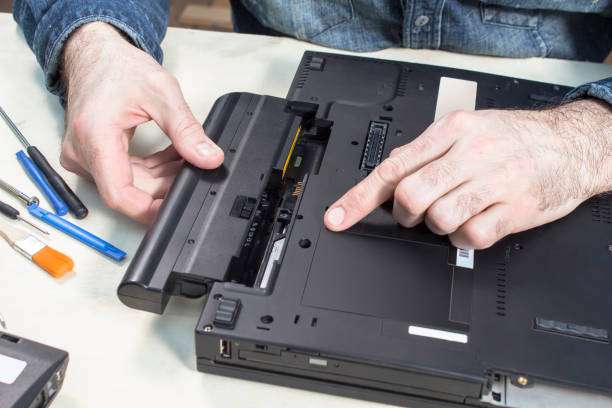
Understanding a few simple battery management tips can greatly improve the lifespan of your laptop’s power source. You can use several easy strategies, such as calibrating the battery, adjusting power settings, and keeping your laptop cool.
One overlooked factor that makes a big difference is how you charge your laptop. With a few practical habits, you can extend your battery’s lifespan and enjoy a better overall computing experience.
Importance of Battery Calibration
Why Calibration Matters
Calibrating your laptop battery helps it perform better and last longer. Good battery health ensures your laptop runs smoothly, and calibration plays an important role in maintaining that health. Calibration resets the battery gauge so it shows the correct charge level and helps the battery work more efficiently.
A common method is to fully charge the battery, let it rest, then drain it completely before charging it again. This improves accuracy and prevents random shutdowns caused by incorrect readings. Regular calibration also helps prevent overcharging and ensures each battery cell is used properly. This simple routine can improve performance and extend the battery’s lifespan.
Adjust Power Settings for Efficiency
Easy Power-Saving Adjustments
Adjusting your laptop’s power settings is an easy way to improve battery life and reduce energy use. Most laptops offer power plans such as Balanced, Power Saver, or High Performance. Choosing Balanced or Power Saver helps conserve energy during light use.
You can also lower screen brightness, close unnecessary background applications, and fine-tune sleep settings. Even small changes in power settings can lead to noticeable improvements in battery performance and long-term health.
Keep Your Laptop Cool
Good ventilation and cooling are essential for keeping your laptop in good condition. Using a cooling pad helps remove heat from internal components. Cleaning dust from vents and fans also improves airflow and prevents overheating.
You can improve cooling even further by applying fresh thermal paste to the CPU and GPU. This helps transfer heat more efficiently and keeps your laptop running at a stable temperature. Proper cooling prevents performance drops caused by high heat levels.
Unplug When Fully Charged
Smart Charging Habits
To maintain battery health, unplug your laptop once it reaches full charge. Keeping it plugged in after 100% puts extra stress on the battery and can shorten its lifespan over time.
Good charging habits make a big difference. Let the battery drain partially before recharging, and avoid leaving the laptop plugged in when you are not using it. These small habits help keep the battery healthy and extend its overall life.
Use Battery Saver Mode
Turning on Battery Saver Mode helps your laptop run more efficiently. This mode reduces background activity, lowers screen brightness, and adjusts performance to save energy.
Battery Saver Mode focuses on energy conservation by limiting power-heavy tasks and reducing unnecessary processes. This helps your battery last longer between charges and reduces long-term wear.
It also manages system resources based on your usage patterns, giving you a good balance between performance and efficiency. Using Battery Saver Mode regularly can greatly improve your laptop’s battery lifespan.